 8 min read
A SharePoint Hub site architecture guide
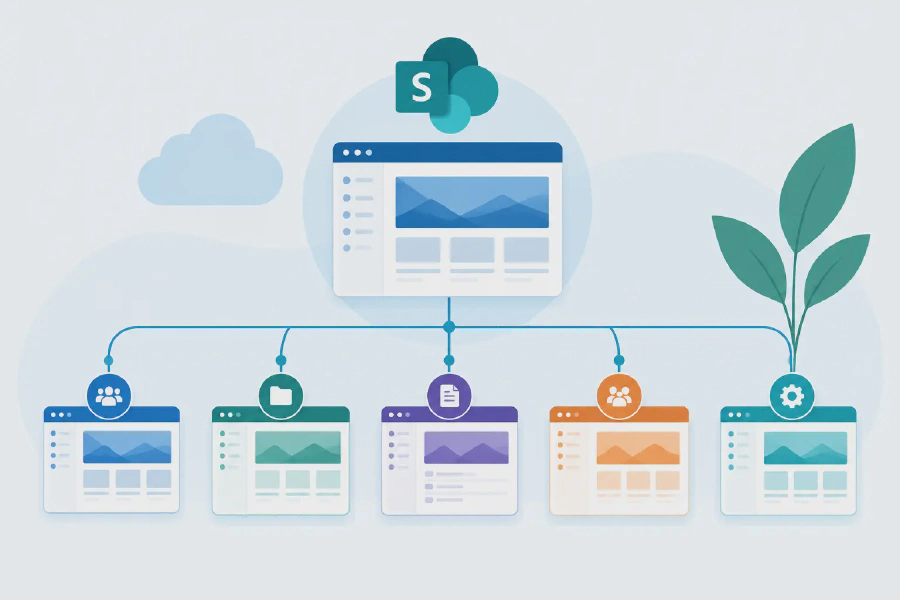
A SharePoint hub is not simply a navigation layer. It is the structure that tells people where to find information, which content belongs together, and who is responsible for keeping it current. This SharePoint hub site architecture guide explains how to design that structure so it supports real work rather than creating another layer of clutter.
For mid-market and enterprise organisations, the difference is significant. A well-planned hub model can bring order to departmental sites, improve internal communications, make documents easier to locate, and establish the governance required for future AI and Copilot use. A poorly planned model often leaves teams with duplicate sites, inconsistent navigation and no clear source of truth.
Start with business functions, not the existing site collection
The most common architecture mistake is to recreate the organisation chart in SharePoint. Reporting lines change regularly, while business functions such as People and Culture, Finance, Operations, Projects, Policies and Communications tend to remain more stable.
Start by identifying the information domains your workforce needs to access. Ask where employees go for organisation-wide news, policies, forms and services. Then consider the distinct areas where teams need to collaborate, manage documents or publish specialist information.
A practical model often includes a central corporate hub for company-wide content, supported by hubs for major functions or business areas. A large organisation may have a separate hub for Operations, People and Culture, or a major transformation programme. A smaller organisation may only need one intranet hub, with associated departmental and communication sites beneath it.
The right number of hubs depends on how different the audiences, ownership and content needs are. Creating a hub for every department can make navigation harder, while placing everything under one hub can make ownership unclear. The goal is meaningful grouping, not a perfect diagram.
Understand what a hub does and does not do
Hub sites bring related SharePoint sites together through common navigation, branding and aggregated content. They are particularly useful for surfacing news, events and highlighted content from associated sites. This gives employees a more connected experience without forcing every team into a single large site.
However, hub association does not merge site permissions. Each associated site retains its own membership and security model. This is useful because a Finance site can remain restricted while still appearing within the broader corporate information structure where appropriate.
A hub also does not replace sound document management. If staff cannot tell which document is approved, or policy owners do not review content, a hub will only make those underlying problems more visible. Architecture needs to work alongside clear ownership, metadata, retention requirements and review processes.
Choose site types for their intended job
Communication sites are best for publishing information to broad audiences. They suit intranet homepages, policy centres, department information sites, service portals and programme updates. Their design prioritises reading, publishing and finding information.
Team sites are better suited to active collaboration. They support project teams, working groups and departments that need to co-author documents, manage tasks and work with Microsoft Teams. Not every team site belongs in intranet navigation. A confidential project workspace, for example, may benefit from strong governance but does not need to be promoted to the whole organisation.
This distinction helps prevent a familiar problem: using a collaborative workspace as a publishing portal, then struggling with cluttered libraries, unclear permissions and inconsistent content.
Define the navigation before you build it
Navigation is where architecture becomes visible to employees. A good hub navigation model reflects the questions people ask: How do I get support? Where is the latest policy? What is happening across the organisation? Which system or form do I need?
Avoid organising top-level navigation around internal SharePoint terminology. Labels such as “Sites”, “Resources” or “Documents” are broad enough to mean almost anything. Use language that matches the organisation, such as “People and Culture”, “Workplace Services”, “Policies and Procedures” or “Business Systems”.
Limit the number of top-level choices. If every department insists on a direct navigation item, the menu quickly becomes a directory rather than a useful route through the intranet. Group related services under clear headings and use landing pages to guide staff to the right destination.
Mega menus can work well for a large intranet with established content categories. For a smaller environment, a simpler menu may be easier to maintain. The decision should be based on content volume and user behaviour, not visual preference alone.
Build a governance model that survives launch
The architecture will only remain useful if ownership is explicit. Every hub, communication site and key document library should have a named business owner, a content owner and appropriate technical support. These roles may be held by the same person in a small team, but the responsibilities should still be clear.
A workable governance model answers five practical questions:
- Who can create new sites, and what approval is required?
- Who approves changes to hub navigation and published pages?
- Which sites must use standard templates, naming conventions and metadata?
- How often are pages, policies and documents reviewed?
- What happens when a project ends, a team changes or a site is no longer needed?
Governance should set sensible guardrails, not create a lengthy approval process for every minor update. Central control is appropriate for corporate navigation, policy publishing and sensitive information. Departments should still be able to manage their own content within agreed standards.
For regulated environments such as healthcare, government or financial services, document acknowledgement may also need to form part of the design. Publishing a revised procedure is not enough if the organisation must demonstrate that affected staff have read it. Compliance Tracker 365 can help address this gap by assigning critical documents or pages to the right audiences and recording acknowledgement.
Design permissions around audiences and risk
Permission sprawl is one of the most persistent SharePoint issues. It usually begins with reasonable exceptions: one folder for a manager, one document for a supplier, one library for a restricted team. Over time, these exceptions become impossible to audit.
Use broad, role-based access wherever possible. Microsoft 365 groups, security groups and defined site membership are easier to manage than permissions assigned directly to individuals. Keep restricted material in a dedicated site or library rather than breaking inheritance repeatedly within a large shared library.
There is a trade-off. A separate site improves security clarity and can give sensitive teams their own lifecycle and ownership model. But too many sites can confuse staff and make content harder to find. Use a separate site where the audience, sensitivity or purpose is genuinely different, not merely because one folder needs a slightly different permission setting.
Make findability part of the architecture
Employees do not experience information architecture through a diagram. They experience it when they search for a form, scan a landing page or try to locate the current version of a procedure under time pressure.
Use consistent page titles, document names and metadata for information that needs to be found across the organisation. For document libraries containing formal records, metadata such as document type, business area, owner, status and review date can be more useful than deep folder structures.
Folders still have a place. They are familiar and can suit active project work or small, contained libraries. But relying on folders alone becomes difficult when content needs to be filtered, reported on, retained or surfaced in multiple places. A balanced approach usually works best: a shallow folder structure where it helps users, supported by metadata for key business documents.
Plan for Copilot and AI readiness now
Copilot can make relevant content easier to summarise and surface, but it also exposes poor information practices. If outdated documents, overshared sites and inconsistent permissions are already present, AI tools can amplify the risk and confusion.
A hub architecture supports AI readiness when it identifies authoritative sources, separates sensitive content appropriately and gives important information clear ownership. Prioritise clean permissions, current published content and reliable metadata in the areas most likely to be used for organisational knowledge.
Do not treat Copilot readiness as a one-off clean-up project. It is an operating discipline. Content review cycles, site lifecycle rules and permission management need to continue after the initial architecture is deployed.
Implement in manageable stages
A phased rollout reduces disruption and gives the organisation time to learn. Begin with discovery: map existing sites, identify duplicate or high-risk content, understand priority user journeys and agree on the target hub structure. This is also the point to identify quick wins, such as a central policy landing page or a clearer route to common staff services.
Next, establish the hub framework, navigation standards, templates and ownership model. Pilot this with one business area before applying it across the organisation. Feedback from real users will reveal whether labels make sense, whether content is missing and whether owners can maintain the model without constant IT intervention.
Migration should be selective. Moving every old document into a new structure usually transfers years of clutter. Archive what must be retained, migrate current and useful content, and assign owners to validate it before publication.
A hub architecture is successful when employees can find trusted information without knowing how SharePoint is configured behind the scenes. Treat it as a business operating model for information, not a technical build, and it will remain useful long after the launch project is complete.