 5 min read
Hero links: A simpler way to share files in SharePoint and OneDrive
Microsoft is introducing a redesigned sharing experience for files and folders in SharePoint and OneDrive. At the centre of the experience is the Hero Link, a single, primary URL that can be used regardless of how access to the item is configured.
As of October 2026, this change is rolling out. Assuming no major issues, I would estimate that it will be available globally by the end of December. Check out the Roadmap entry for the latest details.
This is a welcome change, as the previous sharing functionality can be very confusing. The new approach is more intuitive, with fewer options for the end-user to choose between.
This does mean that there are scenarios that the Hero Link doesn’t support. The good news is that the old functionality is still available, you just have to dig a little deeper to expose it.
This is the first in a series of articles where I will explain how the new sharing functionality works and dig into some of the new behaviour. I won’t be covering the previous sharing options.
Understanding the New Sharing Experience
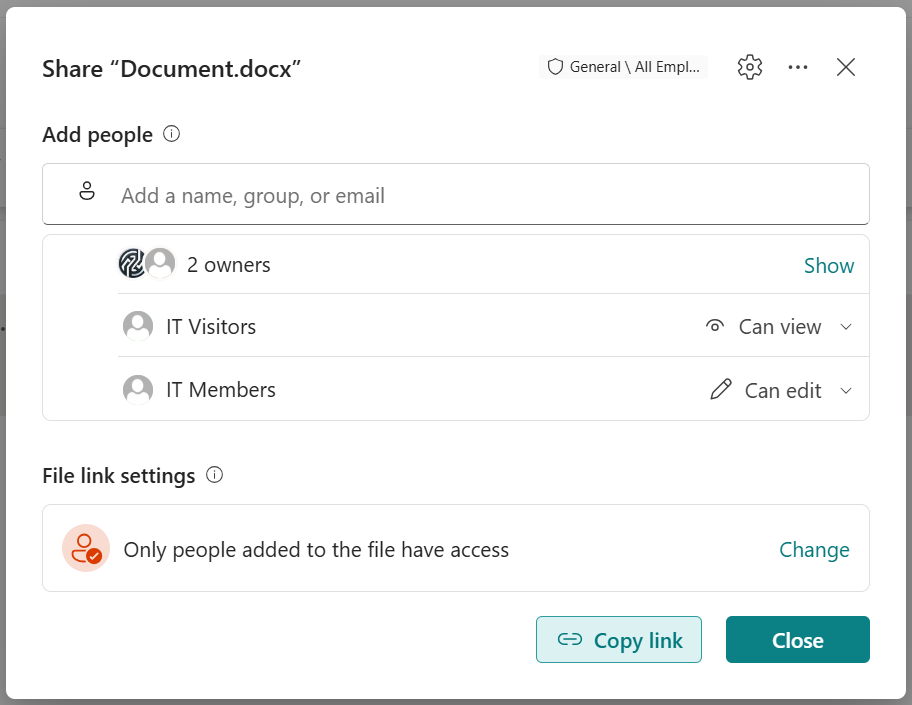 The simplest way to think about the new experience is that a user can be provided access in one of two ways:
- They can be granted permissions directly to the file.
- The file can be shared to a wide audience using a Hero Link.
The first option is how access has usually been managed. Use this when you know the users or groups you want to access the file. By default, this is the only way someone can access a file in SharePoint Online. You can’t turn off this type of access, no matter what other sharing options you choose.
The second option lets you choose one of three options:
- Only people added (default)
- People in your company
- Anyone
The default option Only people added refers to people that have been granted permissions directly to the file.
People in your company is similar to “everyone except external users”. It does not include existing guest users. Use this when you want to provide a broad level of access but you don’t want external parties to get access.
Anyone means that the file can be accessed by someone external to the company, in addition to everyone in the company. They don’t have to log in, they don’t need to be registered as a guest in your tenant. You can grant edit, view or don’t download permissions. This is obviously a very broad level of access that should only be used with content that you are happy for anyone to see.
How the Hero Link Works
When you use the People in your company or Anyone sharing options, the content is not automatically visible to the relevant audience. They only get access when they use the file’s hero link. You’ll notice that when you choose People in your company or Anyone, SharePoint will display “People in your company with the link” or “Anyone with the link”. You need to provide the hero link to whoever you would like to access the file. Once they have used the hero link, they will be able to access the file through other methods such as search or browsing SharePoint.
The beauty of the hero link is that it is the same link, regardless of which sharing option you choose. It is also the same link you see in the browser when you open the file in the Microsoft Office web apps. Whenever you click the Copy Link button, you always* get the same link.
This means you could start out by sharing a document with everyone in your company. You add the hero link to a page on your intranet for staff to access. Later, you decide to share it with your customers, so you change the sharing option from People in your company to Anyone. You don’t have to modify the link on the intranet page. You just need to provide the same link to your customers.
Later, I might decide to restrict access to the document. I change the sharing option back to Only people added. At that point, other internal and external users lose access. If they try to access the file, they will get the “access denied” SharePoint page.
Limitations of the Hero Link
One thing you can’t do with the hero link is provide different types of access to People in your company and Anyone. Whatever you set for Anyone will also apply to People in your company. That’s where access to the older sharing options comes in handy. This allows you to create separate sharing links, each with their own permission type, audience, expiry date or password.
Example of the Hero Link
I mentioned earlier that you always get the same link when you use the hero link functionality. Let’s have a look at an example:
https://spgdeviw2.sharepoint.com/:w:/s/IT/cQoHVufX-K3PTY6vUJZ7x7CYEgUCUx9gyVtJFh5GGqjQIgD1wg
OK, it’s not very descriptive. Thankfully, when you paste this into Outlook or Teams, it will display the filename. This link will still work if you rename the file or move it to a different folder or library. It does not survive a move to a separate site.
At some point, you may want to invalidate a hero link. Perhaps the link got into the wrong hands or you just want to start with a clean slate. In the sharing dialog, go to the settings panel. There is an option to reset link. When you click this, anyone who had access to the file only through the link will lose access. The next time you click the Copy link button you will get a new link.
There is still lots to talk about. In the next article we’ll cover permission inheritance.